
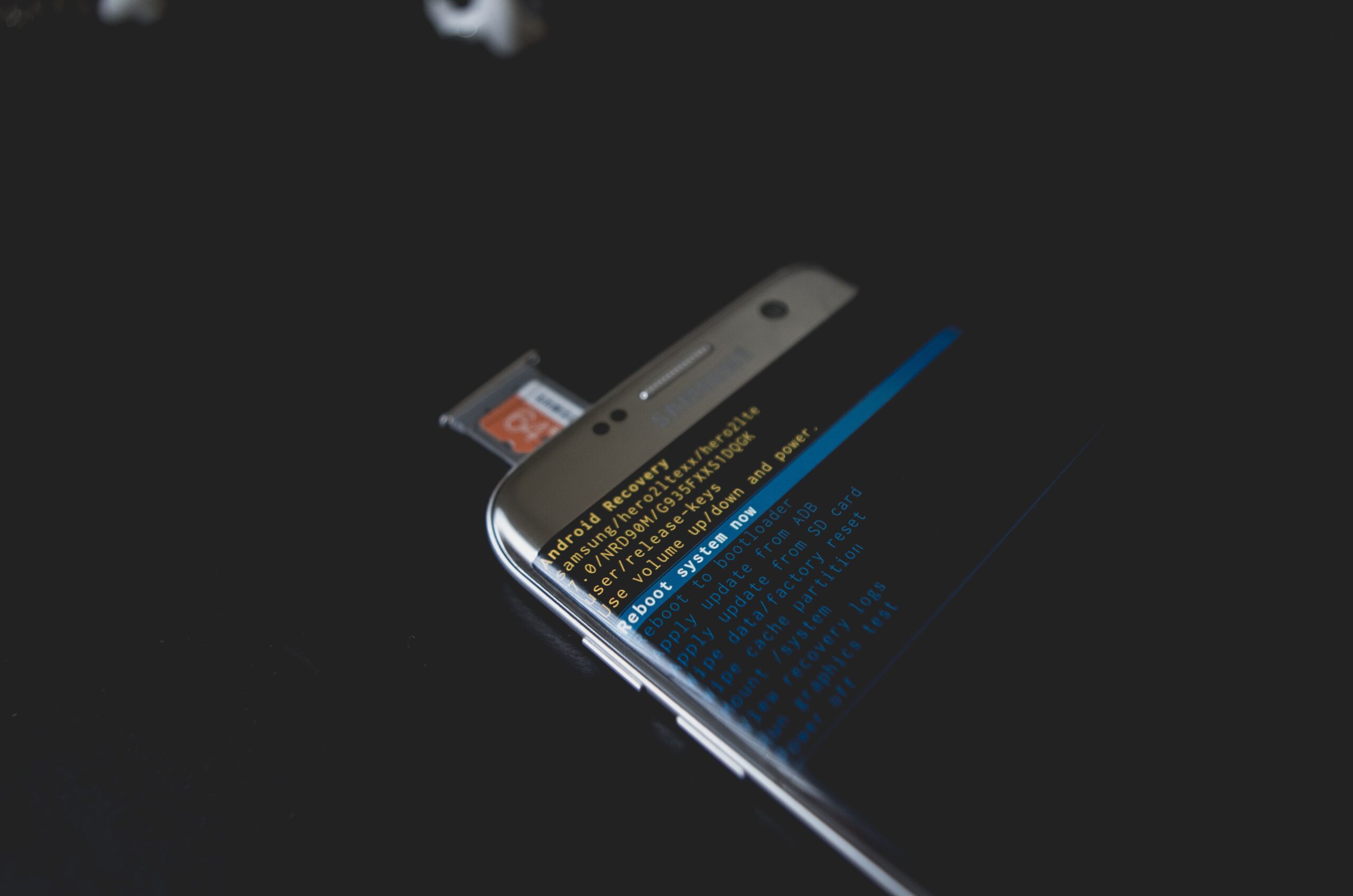
Most people think a deleted Android photo or video is gone the moment it leaves the recycle bin. It is not; often the file is still there on your phone even when it gets removed from the recycle bin or trash, and it’s just hidden from you and your Android device. Android file recovery tools exist to find and recover it.
Still, not every tool does this the same way, and the claims on their websites can sound alike. We wanted to know what really happens during a scan, and which tool deserves a place on a computer. This guide shares the file recovery tool for Android devices we ended up picking, plus what we learned from our first-hand experience of using an Android file recovery tool, including how it works – scan and rebuild your data.
What Happens When You Delete a File
Deleting does not wipe the data right away. Android simply removes the file’s entry from its index and marks that space as free. The photo, video, or note stays in place until something new is written over it.
Think of it as a library card catalog. Lose or destroy the card, and the book is still on the shelf. Nobody can find it, but it has not left the building. That is the opportunity where recovery tools pop in and show their magic.
Once the phone saves new data into the same space, the deleted file gets overwritten and becomes irrecoverable. After that, no recovery tool can ever bring it back. Time matters here, and so does how much you use the phone.
How Android File Recovery Tools Scan Your Phone
A trusted file recovery tool reads the internal storage itself, and the work usually happens in four stages.
-
Scanning: The software goes through the storage sector by sector, looking for traces of deleted files. Bigger storage and more data mean a longer wait.
-
Identification: It tells deleted data apart from active data by checking file signatures and metadata.
-
Reconstruction: Pieces of a file are joined back together into a whole one.
-
Restoration: The results are shown to you, and you choose what to save.
Android file recovery tools often offer two scan styles. A quick scan reads the file system for recently deleted entries, which is fast. A deep scan ignores the index and looks for the raw patterns of known file types, such as the opening bytes of a JPG or an MP4. This method is often called file carving. This takes longer, yet it can find older or partly damaged files that a quick scan misses.
What Decides Whether a File Comes Back
Most Android file recovery tools cannot promise a full recovery. But several things shape the result:
-
Overwriting: Files are recoverable only while their space is unused.
-
Time: The longer a phone is used after deletion, the lower the odds.
-
Encryption and damage: Heavy corruption or encrypted data can block recovery.
-
Where you save: Recovered files should go to a different location, such as your computer.
A tool gives you a fair shot, and that is where choosing one counts.
What We Looked For in a Tool
Before comparing Android file recovery tools, we wrote down a short list.
-
A tool had to work without rooting the phone, since rooting can void warranties and add risk.
-
Works on a desktop and does not require any installation or download on your Android device because that would mean overwriting the deleted Android files.
-
Supports the latest Android 17 OS and any device.
-
Free Scanning, plus scanning internal storage, had to work even when no backup exists.
-
Scanning and recovery of Google Drive backup data.
-
Previews were a must too, because nobody wants to pay before seeing what was found.
-
Support for the data people lose most – photos, videos, contacts, messages, and WhatsApp files.
-
Last on the list was WhatsApp Business and other social media apps data recovery.
Which Android File Recovery Tool We Picked and Why?
We scanned through a dozen Android file recovery software options, but Stellar Data Recovery for Android met that list better than the rest, and so it became our pick.
What stood out is below.
First, the Android file recovery tool gets back your data without rooting the device. Stellar says rooting is not required for full internal storage recovery, which keeps your phone’s warranty and setup untouched. Only USB debugging is required to scan the device’s internal storage.
Second comes a deep scan of internal memory. Deleted files can be hunted down even from deep inside the storage and restored; items removed from the Recently Deleted folder show up too, as long as they have not been overwritten.
Third, large previews appear before you save anything. You tick the files you want, without bothering about everything else. For contacts, saving is done in CSV format.
Fourth, the data types are broad. The tool covers photos, videos, audio, contacts, call logs, messages, and documents. WhatsApp chats, media, and attachments are covered too, including WhatsApp Business attachments and social chats.
Last, files can be pulled from broken, damaged, or unresponsive phones. The brand is also upfront that recovery depends on how long ago the files were deleted and whether they were overwritten, which is the same honest note we saw in other guides.
How to Use It
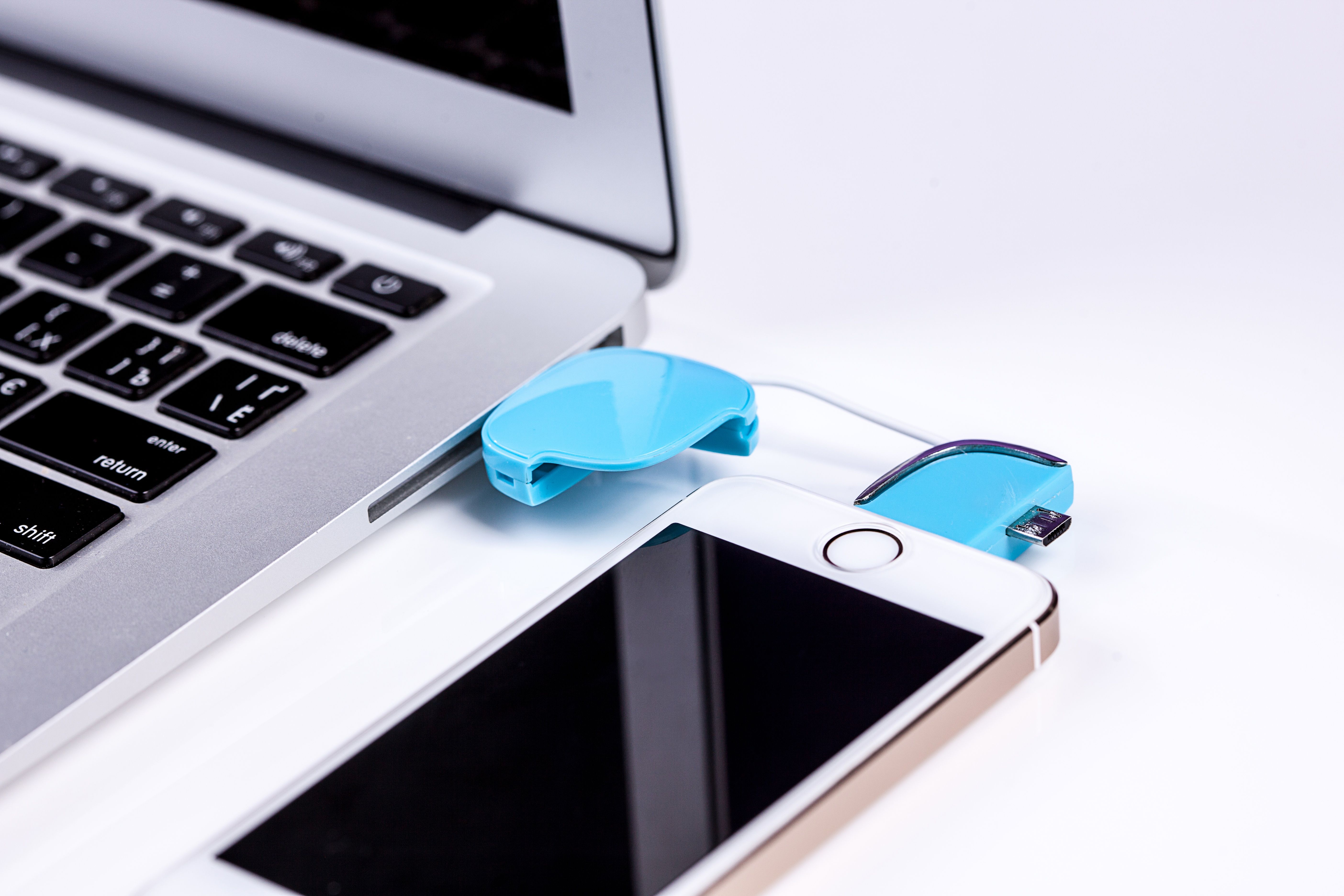
The software installs on a Windows PC, not on the phone, and it works with Android 6 and above. Here is the basic flow:
-
Download and install Stellar Data Recovery for Android on your computer and select the required module.
-
Turn on USB Debugging on your phone, then connect it with a USB cable.
-
Choose what to recover, such as photos or all data, select the device and click Scan.
-
Preview the results. Double click them to view and spot files that were removed.
-
Select the files you want and click Save to a folder on your computer.
You can try the free version first. Right now, Stellar’s product page says it lets you recover up to 10 photos or videos of up to 10 MB each, and the full version removes that limit, adding unlimited recovery. If you have also used an external SD card, try using a free SD card recovery method or tool that can help recover your Android’s SD card data.
Important Habits Before You Scan
Some simple moves raise your chances of Android file recovery.
-
Stop using the phone as soon as you notice the loss, so new data does not overwrite the old.
-
Check the gallery trash and your cloud backup first, since they are the quickest routes back.
-
Skip cleaner apps, which may wipe leftover traces.
-
Run the scan from a computer, where the process is more thorough.
End Notes
File recovery software can feel like magic, but the idea is simple. Deleted files stay until they are overwritten, and a scan finds them by reading storage the way the phone itself doesn’t. Quick scans check the index, deep scans hunt for file patterns, and previews let you confirm before you save.
For us, Stellar Data Recovery for Android is the right balance – it does not require rooting, offers a deep scan, offers clean previews, and supports WhatsApp and broken phones. However, I leave the choice of recovery tool to you, but make sure that, whichever tool you choose, you act early and always keep a backup of your Android phone, so you never need one at all.